How to Use Apollo for Cold Email: A Simple Guide
Apollo.io is a sales platform where you can find contacts, launch email sequences, run multichannel outreach, and analyze calls with AI. For cold email, the main thing about Apollo.io is its large B2B contact database with convenient filters. In this article, we’ll show you how to search and build a prospect list for your campaign.
Key Takeaways
- Apollo is a convenient B2B lead search platform with 60+ filters and a database of 240M+ contacts.
- Pricing: Free, Basic ($65/mo), Professional ($99/mo), and Organization for teams ($119/mo, minimum 3 seats, billed annually).
- The 60+ filters help you find leads by job title, industry, location, revenue, technologies used, and other parameters.
- Apollo uses a credit system: 1 credit = 1 email. You get 2,500 credits per month on Basic, 4,000 on Professional, and 6,000 on Organization.
- If you run out of credits, you can buy more. Packages range from $10 for 400 credits to $800 for 50,000.
- Before launching a campaign, verify the collected email addresses with a verification service (for example, NeverBounce).
When You Need Apollo for Cold Email
To launch a cold email campaign, you need to:
- Build a prospect database and verify the email addresses.
- Prepare domains and mailboxes (read our guide to learn how).
- Start mailbox warm-up.
- Prepare email copy and a follow-up sequence.
- Set up and launch the campaign in your sending platform.
Apollo is useful at the first stage: you can use it to find target companies and contacts, build a prospect database, and estimate its size. This helps you understand what sending volume to plan for.
What to Do Before You Start Searching for Leads
Before you search and build your database, figure out which companies and people you need. This will help you set up Apollo’s filters more accurately and avoid wasting time on irrelevant contacts. Define:
ICP (Ideal Customer Profile): industry, company size, location, technologies used, and other important characteristics.
Target job titles: understand who makes or influences the purchasing decision: CEO, Marketing Director, Head of Sales, or other specialists. Keep in mind that the same role can have different titles.
How Much Apollo Costs
Apollo has a free plan and several paid plans: Basic, Professional, and Organization. They differ in features and the number of available credits, Apollo’s internal currency used to pay for various actions on the platform. For current prices on all plans, see Apollo’s official pricing page.
💡Credits are spent on getting email addresses and phone numbers, buying and warming up domains and mailboxes, and data enrichment. For example, getting one verified email address for a new contact costs 1 credit, while getting a phone number costs 8 credits. Credits are added at the start of each billing period, and unused ones expire when it ends. If you run out, you can buy more.
The Free plan includes only 75 credits per month. That’s too little for real work on the platform, so treat it as a trial only. To get acquainted with the service, start a 14-day free trial of Basic or Professional.
Let’s compare Apollo’s paid plans by credits, available features, and cost per lead:
Basic — $65/mo
Credits and record limit. This plan suits building small prospect databases. It includes 2,500 credits per month and lets you select up to 1,000 records per action. If you spend all included credits only on email addresses, 1,000 contacts will cost about $26.
Available features. The plan gives you access to advanced filters (for example, Technologies, Job Postings, Revenue). It includes the core tools for searching and building a database: Waterfall Enrichment for enriching contact data from multiple sources, AI Research for researching prospects, and AI Writing for preparing copy (up to 250,000 words per month). You also get email sending and automated email sequences, mailbox warm-up (Email Warmup), and call and meeting recording with AI analysis (up to 150 minutes per month). You can set up three Meeting Events in the Apollo calendar.
💡What is a record selection limit? Records in Apollo are contacts or companies. The selection limit determines how many records you can select in one action, for example, when adding contacts to a list. If the limit is low, you’ll have to build your database in parts.
Professional — $99/mo
Credits and record limit. This plan suits building larger prospect databases. It includes 4,000 credits per month and lets you select up to 2,500 records per action. 1,000 email addresses on this plan will cost about $24.75.
Available features. The plan includes the same features as Basic, including Waterfall Enrichment and mailbox warm-up. But the call recording limit increases to 4,000 minutes and the number of Meeting Events to six. You can also connect agents to automate tasks and run A/B tests for email sequences.
Organization — $119/mo per user
This plan is for teams of three or more users, and only annual billing is available, totaling $4,284. 1,000 contacts will cost about $19.83.
Credits and record limit. The plan provides 6,000 credits per month (72,000 per year) and a record selection limit of 10,000.
Available features. The plan includes the features of the previous plans, but raises the record selection limit to 10,000 and AI meeting analysis to 8,000 minutes per month. You also get unlimited custom dashboards, advanced security settings, SSO, and unlimited connected Gmail and Microsoft mailboxes.
→ Read more about Apollo’s plans and pricing, and how to choose a plan, in a separate article.
Additional Credits
If you know your current plan’s features are enough but you’re short on credits, you can buy more separately. This lets you raise your limit without moving to a more expensive plan. Here’s what additional monthly credits cost:
| Additional credits | Extra charge | Cost per 1,000 emails |
|---|---|---|
| +400 | $10 | $25 |
| +1000 | $25 | $25 |
| +2500 | $50 | $20 |
| +5000 | $100 | $20 |
| +10 000 | $180 | $18 |
| +20 000 | $320 | $16 |
| +50 000 | $800 | $16 |
Please note: the payment for additional credits will automatically repeat every billing period until you turn this option off.
How to Build a Lead List with Apollo Filters
Step 1. Apply Filters
In Apollo, you can search for prospects in two sections: Companies to select target companies and People to find specific professionals. If you want to build a list of companies first, start with Companies. Apollo’s database contains about 30M companies, and you can filter them by industry, number of employees, location, revenue, and other parameters. Save suitable companies to a list, then search for people within them.
If you already know who you want to write to, go straight to People. Let’s look at which filters are available in this section and how to set up your search.
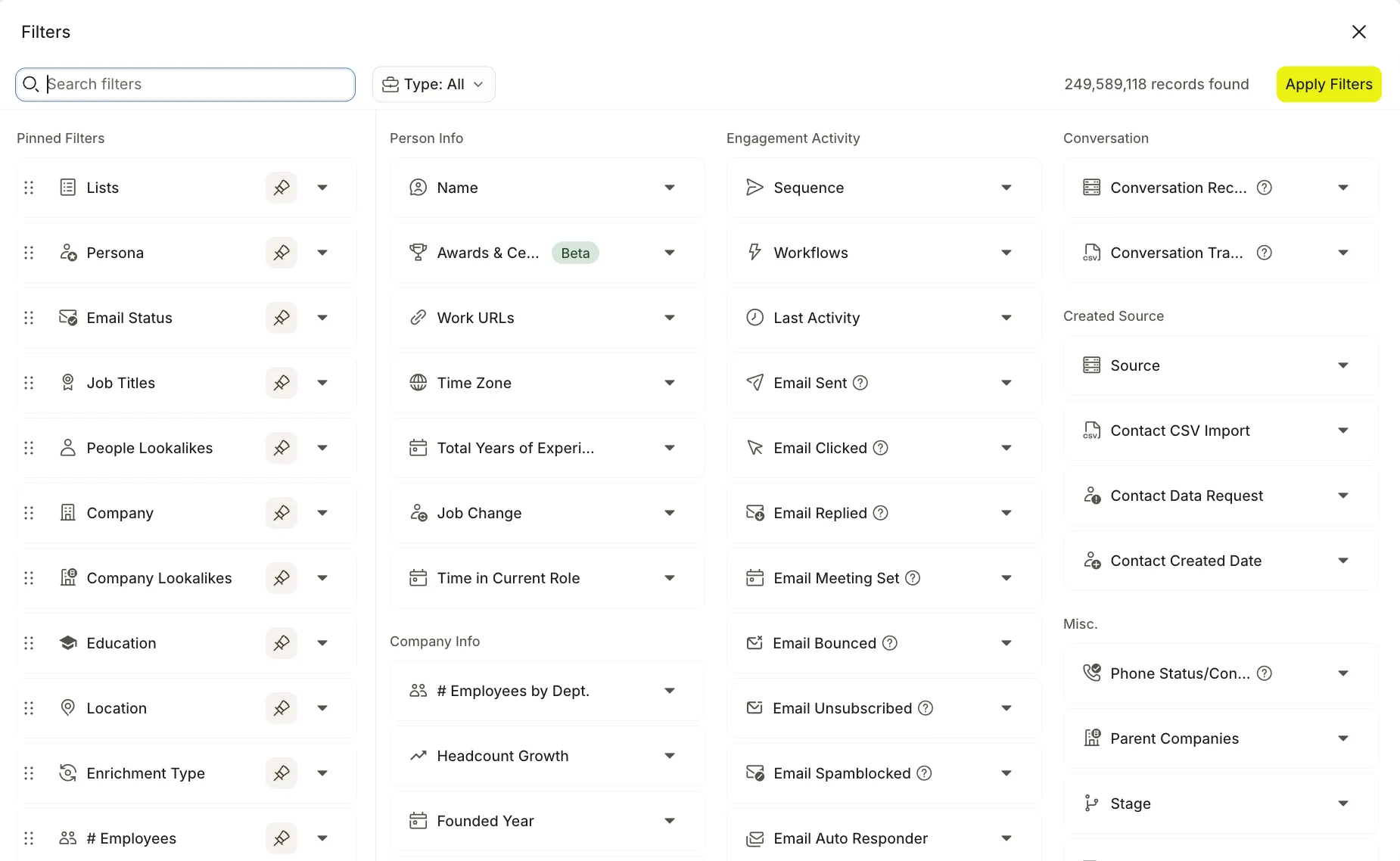
Apollo has more than 60 filters, grouped into several categories (to see all available filters, click the View 60+ Filters button in the bottom corner of the screen, where you can also search for filters). Some filters are not available on all plans.
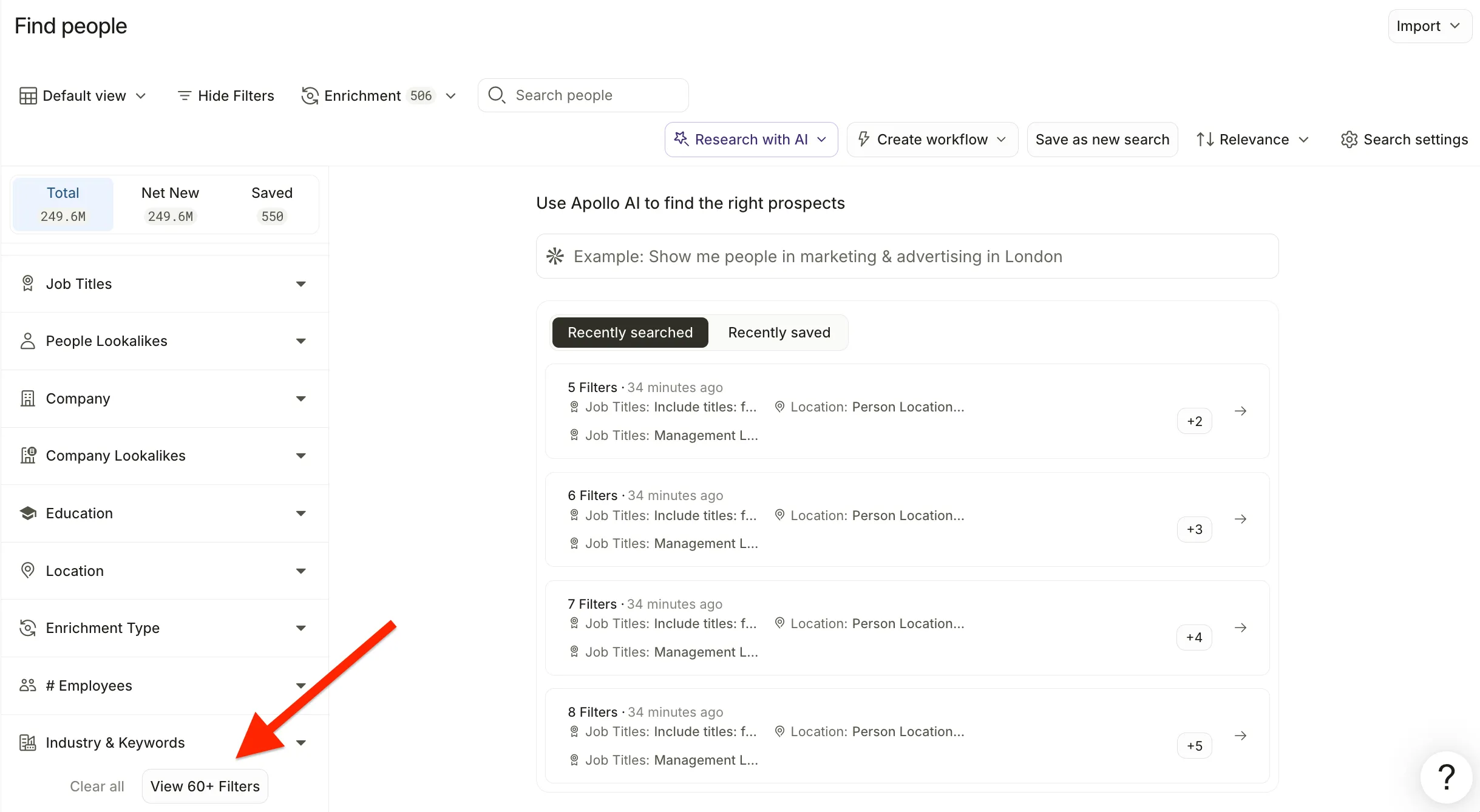
In the People section, you can select professionals by job title and other professional characteristics, and set parameters for the companies they work at. The filters here can be roughly divided into three groups:
- About the person: who this professional is. Job title, level, department, experience, and other professional characteristics.
- About the company: where they work. Industry, size, location, revenue, technologies used.
- Interest signals: signs that your product may be relevant to the company. For example, if it’s expanding its team, posting new jobs, or recently received investment.
For cold email, focus on filters that help you find the right job title, a suitable company, and contacts with an available email. Filters can be combined: for example, you can search for marketers at SaaS companies with 21 to 1,000 employees in the US. About 5,600 such people were found:
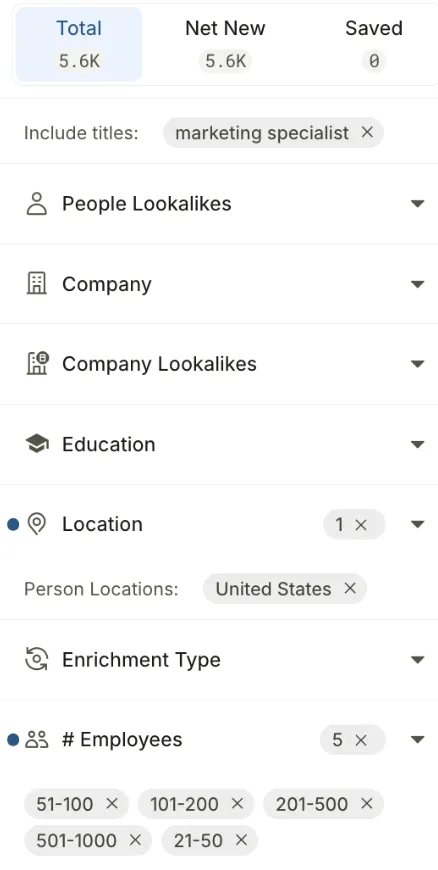
Conditions from different filters usually narrow down the results, while several values within a single filter usually broaden them. For example, if you specify several suitable job titles, the results will include professionals with any of them.
Job Title Filters
Job Titles: lets you search for people by job title, include similar titles, exclude certain roles, and take past positions into account.
For example, if you offer SEO services, you can find Marketing Director, Head of Marketing, and CMO, excluding Marketing Intern and Marketing Assistant.
Management Level and Departments & Job Function: help you select professionals by seniority and area of work.
For example, you can choose the Marketing department and the Director or VP level to focus on leaders who decide on the marketing budget.
Time in Current Role: shows how long a person has been in their current role. It helps you find recently appointed leaders who may be reviewing processes and choosing new contractors.
For example, you can filter for marketing directors who have held the position for less than a year.
Company Filters
Location: lets you filter contacts by the location of the person or the company.
For example, find marketing leaders in the US and Canada.
# Employees: filters people by the number of employees at their companies.
For example, you can search for sales leaders at companies with 50–500 employees.
Industry & Keywords: lets you search for companies by industry or by words in the business description, on the website, and in other available data.
For example, find online stores, SaaS companies, and other businesses that may need SEO services.
Revenue: helps you select companies by annual revenue, if this data is available in Apollo.
For example, search for companies with annual revenue from $5M to $50M.
Technologies: helps you search for companies by the technologies they use.
For example, find Shopify online stores to which you can offer SEO services.
Interest Signal Filters
Buying Intent: helps you find companies showing interest in specific topics.
For example, you can search for companies interested in SEO and organic traffic.
Job Postings: lets you find companies that are hiring for specific positions.
For example, you can search for companies that have opened an SEO specialist vacancy.
Another useful filter is Email Status. It lets you select contacts by email status, for example, keeping only addresses marked as verified.
→ Read more about people and company search filters in Apollo, with examples and practical tips, in our separate article: (link, article in progress)
Step 2. Review the Results
Go through the results and remove irrelevant contacts. Check that job titles match your audience and that companies fit by industry, size, and location. Assess how current the job titles and companies are based on Apollo’s data and, if needed, spot-check profiles on LinkedIn. If you’re unsure, open the contact card. Choose work addresses with the Verified status (we recommend selecting the corresponding filter), but keep in mind that it doesn’t guarantee email delivery.
💡Why the Verified status doesn’t guarantee delivery. It means the address passed Apollo’s verification. The service checks its database monthly, but the data can still go out of date: for example, a person may change jobs or a mailbox may stop working. Bounces (bounce rate) hurt mailbox reputation, so verify addresses before sending and monitor the share of undelivered emails.
If your list has fewer than 2,000 contacts, it’s a small segment. It may not be enough to reach your campaign goals, especially if you’re planning a large-scale campaign and want enough replies and booked meetings. So even if this is your entire target audience, it’s better to add other search criteria and expand the list. If Apollo finds more than 2–3 million contacts, your audience is most likely too broad. Add more precise filters to single out the companies and people who best match your offer.
At Maildoso, we recommend aiming for a database of 5,000 to 15,000 contacts per campaign and searching for your audience in different ways: combine job titles, keywords, technologies used, and signals. This way, you can isolate different segments of your target audience in several passes.
Step 3. Save Contacts and Build a List
Add suitable contacts to a list to save your selected audience. Later, you can return to the list, expand it, and export it to verify addresses and upload it to your sending platform.
To do this:
- In the Lists section, create a new list.
- Go back to the People section, where you applied filters and selected contacts. Check the box next to specific names or next to the Name column header.
- Click Add to list and choose the list you created earlier.
- Make sure the contacts were added. Now you can open the list in the Lists section, keep working with your audience, or export the contacts to CSV.
Step 4. Export the List
- Open the saved list, select all contacts, and click Export at the top of the panel.
- Don’t forget to choose to export only verified (Verified) email addresses.
- If you need to choose which data goes into the file, click Edit export CSV settings and configure the columns. This is useful if you want to add a name, company, or job title to your emails, or if your sending platform requires specific columns.
How credits are spent. Exporting contacts you’ve already saved doesn’t require credits. Credits are deducted when you export new contacts. It’s one credit per email, and only for addresses Apollo can verify. If Apollo didn’t find a verified address, no credit is deducted.
💡Even if you selected only verified (Verified) email addresses, it’s worth verifying them again before launching a campaign with a verification service, for example, NeverBounce or ZeroBounce (see our review of email verification services for alternatives). This way, fewer emails will fail to reach recipients, and your mailboxes’ reputation won’t suffer.
Upload the CSV file with contacts to your chosen verification service. After verification, download the results file and import only valid email addresses into Instantly or another sending platform.
Bottom Line
Apollo helps you find B2B companies and decision-makers, collect contacts, and prepare a database for cold email. But its data isn’t perfect. Apollo claims 91% accuracy for verified emails, but independent tests show less, and results depend on region and niche. Apollo works best with US companies and worse with Europe and other regions. That’s why you should verify addresses before every campaign.
Apollo is a good place to start: it offers free 14-day trials and flexible filters. If you need alternatives, take a look at UpLead (verifies emails in real time), Ocean.io (finds companies similar to your customers), or Snov.io (contact search and address verification in one service). We covered these services in a separate article.\
FAQ
Is Apollo useful for cold email?
Yes. Apollo has a large B2B contact database and detailed filters.
Does Apollo have a free trial?
Yes, Apollo has a Free plan and 14-day trials on the Basic and Professional plans. That’s plenty to test the service, get to grips with the filters, and build a small test list.
How much does Apollo cost after the trial ends?
It depends on the plan. With monthly billing, Basic costs $65 and Professional $99. The Organization plan is available only with annual billing and requires at least 3 users; per month, that’s $119 per user.
Can I use Apollo data for cold email without additional verification?
Technically, yes, but we don’t recommend it. Apollo claims 91% accuracy for verified email addresses, but the Verified status still doesn’t guarantee delivery. And if your bounce rate exceeds 2%, it can harm the reputation of your mailboxes and domains. So before sending, it’s better to verify addresses with a verification service (like NeverBounce) and remove invalid ones. It’s cheaper than losing warmed-up mailboxes.